
 Back
Back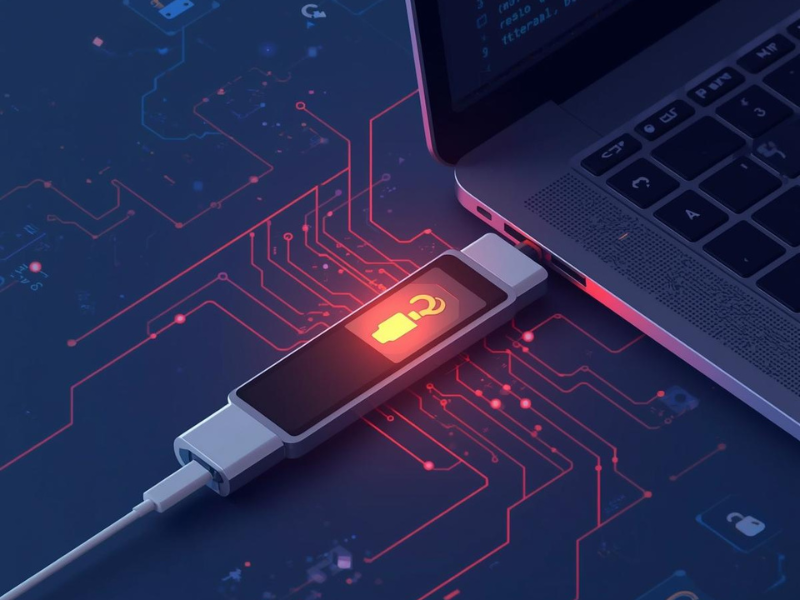
We all want to keep our digital lives secure, yet passwords alone often fall short. Data breaches, phishing attacks, and credential theft are real threats, and the tools we use to defend ourselves have to evolve. That’s where physical security keys like YubiKey come into play. Renowned for adding a powerful extra layer of protection, YubiKey is transforming the way we think about online security. Let’s explore how this little device can make a world of difference for our digital safety.
Key Takeaways
- A YubiKey is a physical security key that adds strong protection beyond traditional passwords, making online accounts much harder to hack.
- YubiKey uses public key cryptography and never transmits reusable passwords, providing effective phishing resistance and instant authentication.
- With support for multiple authentication protocols, YubiKey works across a wide range of services and devices, including Windows, macOS, iOS, Android, and major browsers.
- Setting up a YubiKey is straightforward: choose a compatible model, register it with your online services, and make sure to keep a backup key for safety.
- Compared to SMS codes or authenticator apps, YubiKey offers superior security and convenience, but you should always register more than one key to prevent lockouts.
Understanding Physical Security Keys
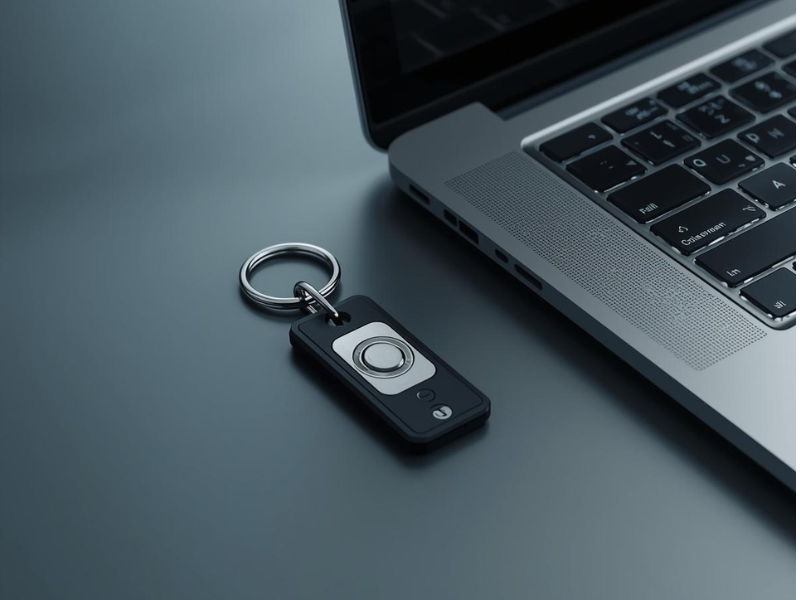
Before diving into the specifics of YubiKey, it’s important to establish what makes physical security keys different from traditional authentication methods. At their core, physical security keys are small hardware devices that serve as proof of identity. They rely on public-key cryptography, which provides a much stronger level of security compared to SMS codes or app-based authenticators.
Traditional authentication often involves something we know, a password. Physical security keys, but, use something we have. This little distinction drastically strengthens account protection. Even if an attacker steals our password, they can’t access our accounts without the actual key in hand.
Why Are Physical Keys Superior?
- Immune to phishing: They won’t transmit authentication codes to fake sites poised to steal credentials.
- Resistant to common hacks: They don’t rely on phone networks or software, reducing attack surfaces.
- Universal second factor: Physical keys can work for hundreds of services, offering consistent usability.
Physical security keys have quickly become a gold standard for businesses and individuals serious about securing sensitive data.
How YubiKey Works
A YubiKey is essentially a tiny, tough device you plug into a computer or tap on a mobile device when prompted. But how does it actually authenticate our identity?
The Technology Behind YubiKey
YubiKey makes use of public key cryptography and one-time passwords (OTP). When we try to log in to an account protected by YubiKey, the device either plugs in via USB, connects by NFC, or uses other supported protocols. It never sends a reusable static password. Instead, it creates a unique, highly secure authentication response that only the legitimate service can validate.
Step-by-Step Process:
- Initiate Login: We enter our username and password on a website that supports YubiKey.
- Prompt for YubiKey: The site asks us to use or touch our YubiKey.
- Challenge-Response: The key and service exchange cryptographic challenges to confirm authenticity.
- Immediate Access: If all checks pass, access is granted instantly.
There are no drivers to install, and YubiKey is recognized as a standard input device or security token by most systems. Streamlined and fast, the device doesn’t require batteries, software, or complex setup.
Key Features and Technologies
What sets YubiKey apart isn’t just its format, but also the range of cutting-edge security features packed inside such a compact device.
Main Features
- Multi-Protocol Support: YubiKey supports several authentication methods, including FIDO2, U2F, Smart Card (PIV), OTP, and OpenPGP.
- Phishing Resistance: Because it cryptographically checks the origin of authentication requests, phishing sites simply won’t work with YubiKey.
- No Batteries Required: It’s always ready, no charging or replacing batteries.
- Rugged Durability: Waterproof, crush-resistant, and built to last years, a YubiKey is designed for everyday life.
- Fast Authentication: With a quick tap or insertion, authentication completes in seconds.
Supported Technologies
- FIDO2/WebAuthn: Enables passwordless logins and secure multi-factor authentication.
- Universal 2nd Factor (U2F): Widely supported by major platforms for strong two-factor authentication.
- One-Time Password (OTP): Compatible with legacy systems needing secure codes.
- Smart Card Functionality: Supports secure sign-in and encryption needs for enterprise environments.
Because YubiKey embraces a variety of standards, it’s versatile enough for personal use, enterprise security, and everything in between.
Types of YubiKeys and Compatibility
Yubico, the company behind YubiKey, offers several models tailored for different needs. Let’s break down the choices, so we can select a YubiKey that works best for us.
YubiKey Variants
- YubiKey 5 Series: The flagship line, supporting all key protocols, FIDO2, U2F, OTP, PIV, and OpenPGP. Available in USB-A, USB-C, Lightning, and NFC options.
- YubiKey 5C Nano/5 Nano: Ultra-compact for laptops: stays plugged in for regular use.
- YubiKey 5Ci: Dual connectors (USB-C and Lightning) for seamless switching between iOS devices and modern computers.
- Security Key Series: Focused on FIDO2 and U2F protocol for simplified two-factor and passwordless login: available in USB-A, USB-C, and NFC.
Device Compatibility
YubiKey interacts with a broad spectrum of hardware and software platforms:
- Operating Systems: Windows, macOS, Linux, iOS, and Android
- Browsers: Chrome, Firefox, Edge, Safari (with WebAuthn support)
- Services: Google, Microsoft, Facebook, Twitter, Dropbox, GitHub, and many more
No matter our tech ecosystem, there’s likely a YubiKey model that fits. It’s important to check the connectors and supported protocols before purchasing to ensure maximum compatibility.

Use Cases for YubiKey
YubiKey isn’t just for the IT department or cybersecurity experts. Its value extends to anyone who wants robust, hassle-free protection.
Personal Security
- Securing Email Accounts: A single compromised inbox can jeopardize finances, work, and privacy. YubiKey adds a critical line of defense to Gmail, Outlook, and more.
- Social Media & Cloud Storage: YubiKey can lock down Twitter, Facebook, Dropbox, and other platforms vulnerable to credential theft.
Professional and Enterprise Security
- Workplace Login Protection: For businesses, YubiKey significantly reduces risks of phishing attacks that threaten sensitive company data.
- Developer Tools and Repositories: GitHub, GitLab, and Bitbucket all support YubiKey for authenticating code changes and access.
Compliance Requirements
- Regulated Industries: Many healthcare, finance, or government organizations require physical security keys to meet compliance with modern cyber insurance or regulatory standards.
Everyday Accessibility
Because it’s portable and virtually indestructible, we can take a YubiKey on the go, backing up sensitive accounts as easily as locking our door.
Setting Up and Using a YubiKey
Getting started with a YubiKey is easier than many folks expect.
Step 1: Choose the Right YubiKey
First, let’s make sure we pick a model that matches our devices and supports the services we use.
Step 2: Register With Online Services
Most major websites have a security section where we can add a security key. Typically, the process looks like this:
- Log in to your account and navigate to security settings.
- Select ‘Add Security Key.’
- Insert or tap the YubiKey as prompted.
- Follow on-screen instructions (e.g., naming the key, registering a backup).
Step 3: Backup and Management
For maximum reliability, we should register at least two keys, one as a backup. Yubico’s management tools and simple onboarding make it easy to keep track of registered devices.
Step 4: Everyday Use
Once configured, logging in is a breeze. When prompted, just plug in or tap the YubiKey and proceed: it’s as simple as that.
Troubleshooting
Rare hiccups (like browser compatibility issues) are usually resolved with a quick device or browser update. Most users report a seamless process enhanced by the peace of mind that comes with strong, hardware-backed security.
Comparing YubiKey With Other Authentication Methods
It’s natural to ask how YubiKey stacks up against more traditional two-factor authentication (2FA) options. Let’s lay out a side-by-side comparison:
| Method | Security Level | Phishing Resistance | Convenience | Cost |
|---|---|---|---|---|
| YubiKey | Very High | Yes | High | $$ |
| SMS Codes | Low | No | Medium | Free |
| Authenticator Apps | Medium | No | High | Free |
| Email Codes | Low | No | Medium | Free |
| Biometrics | High | Limited | High | $$$ |
YubiKey Advantages:
- Blocks phishing attacks better than codes or apps
- Works offline and independently of mobile coverage
- Lasts for years, even with heavy use
Drawbacks:
- Physical keys can be misplaced if not managed carefully
- Slight upfront cost compared to free methods
Other 2FA options may suffice for some needs, but when we value the highest level of security without added headaches, YubiKey clearly shines.

Risks, Limitations, and Best Practices
No security solution is perfect, and smart security means understanding both the power and the limits of a YubiKey.
Risks and Limitations
- Lost Keys: Misplacing a YubiKey could lock us out of vital accounts if we haven’t set up a backup or alternate method.
- Service Support: While adoption is broad, not every online platform supports hardware authenticator keys yet.
- Initial Setup: Some may find the first-time registration process a bit technical, although Yubico has invested in making it as user-friendly as possible.
Best Practices
- Register Multiple Keys: Always keep a backup, preferably stored securely in a separate location.
- Update Recovery Options: Make sure each account has alternative recovery methods, just in case.
- Stay Up to Date: Watch for service updates and new security features to ensure ongoing protection.
By proactively planning for these small risks, we maximize the advantages and minimize any hiccups down the road.
Conclusion
Digital threats aren’t going away. But we’re not powerless, far from it. YubiKey gives us simple, robust security that outpaces traditional alternatives and fits seamlessly into our personal or professional routines. Investing in a YubiKey is more than just adopting a clever gadget: it’s a step toward peace of mind and genuine cybersecurity confidence. As more services recognize the value of strong authentication, we’re empowered to take control and protect what matters. The best defense sometimes fits on a keychain.
Frequently Asked Questions About YubiKey
What is a YubiKey and how does it work?
A YubiKey is a small, physical security key that provides strong authentication for online accounts. It works by generating secure, one-time responses using public-key cryptography, requiring users to plug in or tap the device as an extra layer of security beyond just a password.
Why is a YubiKey considered more secure than traditional two-factor authentication methods?
YubiKey protects against phishing and common hacks by never transmitting authentication codes to fake sites and by not relying on phone networks or SMS. It uses cryptographic protocols, ensuring only legitimate services can validate its response, making unauthorized access far less likely.
Which services and devices are compatible with YubiKey?
YubiKey supports a wide variety of platforms including Windows, macOS, Linux, iOS, Android, and major browsers like Chrome, Firefox, and Safari. It’s compatible with popular services such as Google, Microsoft, Facebook, Twitter, Dropbox, GitHub, and many more.
How do I set up and start using a YubiKey?
To set up a YubiKey, register the device within the security settings of your chosen online account. Follow prompts to add the security key and, for best security, register a backup key. Setup is usually fast and doesn’t require special software or drivers.
Can I use a YubiKey for passwordless login?
Yes, many services now support passwordless login using YubiKey, leveraging protocols like FIDO2 and WebAuthn. This enables users to authenticate by simply using the physical key—no password required—significantly reducing the risk of stolen credentials.
What happens if I lose my YubiKey?
If you lose your YubiKey, you may be locked out of your accounts unless you’ve registered a backup key or alternative recovery method. It’s recommended to always set up at least two YubiKeys and keep one securely stored as a backup to avoid access problems.