 Back
Back
Getting user account management right is pivotal for both security and productivity. When we effectively manage user accounts, we not only safeguard sensitive data but also enable seamless access for everyone who needs it. Whether you’re running a small business or overseeing enterprise-level operations, having solid user management practices in place can make all the difference, from preventing unauthorized access to improving user experience across the board.
In this guide, we’ll break down best practices in user account management, dig into the essentials of access control and account permissions, and provide actionable strategies to enhance security for any modern organization.
Key Takeaways
- Effective user account management enhances both organizational security and productivity.
- Assigning appropriate user roles and permissions, following the principle of least privilege, minimizes risk of unauthorized access.
- Regularly reviewing and auditing user accounts and permissions helps identify security gaps and maintain compliance.
- Implementing robust authentication methods, like multi-factor authentication, is essential for secure user account management.
- Promptly deleting or disabling inactive user accounts reduces vulnerabilities to cyber threats.
- Automating account management tasks streamlines workflows while supporting consistent security policies.
Understanding User Accounts and Their Types
We’ve all encountered user accounts, those digital identities that let us log in, carry out tasks, and access different resources within a system. But not all user accounts are the same. Understanding the types we might manage is foundational for building effective access management strategies.
Core Types of User Accounts
- Standard User Accounts: These are the most common and are provided to typical users. Standard accounts have restricted access rights and can only perform everyday tasks, like using software and customizing settings.
- Administrator Accounts: Administrators hold more privileges, allowing them to install software, change permissions, and manage other accounts. Because of this elevated access, administrator accounts must be managed with extra caution.
- Service Accounts: These are specialized accounts used by applications or services, not people. They’re necessary for running background processes like database maintenance or scheduled tasks. Managing service accounts effectively is essential for system security.
- Guest Accounts: Used for short-term or temporary access, often with highly limited permissions. These can pose security risks if left unchecked.
- Local vs. Network (Domain) Accounts: A local user account exists on a single computer, while network/domain accounts are managed centrally (for example, through Active Directory) and allow access to resources across a network.
Knowing the role and expected behavior of each account type lets us assign the right permissions, prevent privilege escalation, and reduce the risk of unauthorized access to sensitive information.
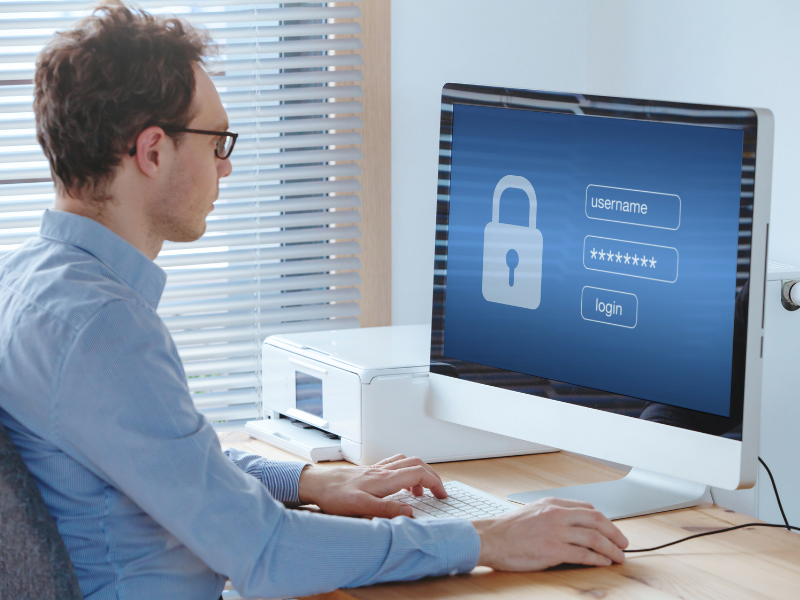
User Roles and Permissions: Access Control Essentials
Assigning user roles and determining permissions is at the core of access control. When we talk about ‘who can do what’ within a system, it’s all about defining and enforcing these parameters.
Defining Roles
- Role-Based Access Control (RBAC): Roles let us group users by job function and assign relevant permissions. For instance, a finance team member can access payroll data, but not product source code.
- Principle of Least Privilege: This means each user only gets the minimum access necessary to perform required tasks. It’s a crucial best practice to reduce the attack surface and prevent accidental (or deliberate) misuse.
Setting Permissions
Permissions specify the level of access a user has:
- Read: View resources
- Write: Create or modify resources
- Execute: Run certain programs or scripts
- Delete: Remove resources or files
By mapping permissions to well-designed roles, we make the ongoing management of user accounts much more manageable and secure. This structure aids in reviewing user accounts and permissions efficiently, particularly during regular account audits.
Authentication and Authorization in User Management
Authentication and authorization, though often mentioned together, serve different but complementary purposes. Both are critical for secure user account management systems.
Authenticating Identities
Authentication is the process that verifies user identity. It answers the question: ‘Are you who you say you are?’
- Password-Based Authentication: The most traditional form. Strong, unique passwords are a must, multifactor authentication (MFA) is becoming standard to enhance security.
- Biometric Authentication: Fingerprints, face recognition, or iris scans are becoming more common in today’s devices, adding another layer of security.
- Token-Based Authentication: Temporary codes sent to a user’s device for one-time access.
Giving Permissions: Authorization
Authorization determines what a verified user can actually do once they’re inside the system. For example, a user might authenticate successfully but isn’t authorized to access sensitive HR records.
By separating authentication and authorization, we can tightly control user access and minimize the risk of unauthorized access to sensitive company data. Regularly updating authentication methods and periodically reviewing account permissions keeps the entire access control system robust.
Creating, Managing, and Deleting User Accounts
Effective user account management covers the entire account lifecycle, from the moment a new user joins the organization to long after someone leaves.
Account Creation
The process starts with collecting accurate user information and deciding which system resources the new account will access. For local user accounts or network-managed ones, we need standardized onboarding procedures:
- Validate the identity of new users.
- Assign the right role and account permissions from day one.
- Ensure initial credentials (temporary passwords, for example) are delivered securely.
Managing User Accounts
Administrators must regularly review user accounts and adjust roles as employees change departments or responsibilities. Failing to update access privileges can quickly become a security gap. Automating parts of this workflow through management systems (like Active Directory or similar user directories) can help maintain security and compliance.
Deleting (or Disabling) Accounts
Promptly deleting or disabling accounts when someone leaves is just as vital as setting them up. Orphaned accounts are a favorite target for cyber threats. We also need regular account audits to catch any inactive or forgotten accounts lingering in the system.
A defined process for creating, managing, and deleting user accounts helps us stay organized and reduce the risk of unauthorized access.
User Account Management in Windows 10 and Windows 11
Managing user accounts in Windows 10 and Windows 11 brings its own set of tools and challenges. Microsoft’s operating systems are ubiquitous in business environments, so understanding their specific functionality is crucial.
Types of Accounts in Windows
- Local User Account: Managed directly on a device. Suitable for single users or stand-alone systems.
- Microsoft Account: Connects the device to Microsoft services and allows for settings sync, OneDrive, and the Microsoft Store.
- Domain Account: Managed via Windows Server and Active Directory, best for businesses needing centralized management.
User Account Operations
- Creating Accounts: Administrators can add users through the Settings app, Control Panel, or with PowerShell for bulk operations. Both standard user accounts and administrators can be set up, each with different permissions.
- Managing User Accounts: Adjusting account types, changing permissions, enforcing password policies, or enabling account lockout policies, all natively supported in Windows 10 and 11.
- Deleting or Disabling Accounts: Essential when an employee leaves or a device is repurposed. We should always remove or disable user accounts using administrative tools to maintain security.
Useful Tools
- Local Users and Groups MMC: For fine-tuned control over accounts and permissions on professional or enterprise editions.
- Active Directory Users and Computers: Key for managing large numbers of users across multiple machines and locations.
These capabilities help organizations effectively manage user accounts, maintain security, and support compliance, especially when paired with strong account management policies.
Securing User Accounts: Policies and Best Practices
Securing user accounts is more than enforcing password changes. It’s about adopting a holistic set of account management policies and best practices that reinforce overall system security.
Essential Policies
- Password Policies: Strong, unique passwords, regular changes, and preventing password reuse are baseline requirements. Consider requiring passphrases for added strength.
- Account Lockout Policies: After repeated failed login attempts, automatic lockout helps prevent brute-force attacks.
- Regular Account Audits: Reviewing user accounts and account permissions at set intervals keeps the user directory current and secure.
- Principle of Least Privilege: Grant access based strictly on necessity, reviewing as roles or projects change.
Best Practice Recommendations
- Multi-factor Authentication (MFA): These days, MFA isn’t optional. Adding a second authentication factor (such as a text message, authenticator app, or biometric scan) greatly strengthens user authentication and authorization.
- Timely Deprovisioning: Disable or delete user accounts immediately when the user’s role changes or they leave the organization.
- User Training: Even the best technical controls can be undermined by poor user choices. Training users to recognize phishing attacks and use best password practices helps prevent unauthorized access.
- Automation and Monitoring: Automate repetitive management tasks where possible, and keep logs so unusual activity is flagged early.
When we consistently apply these practices, we’re far better positioned to prevent unauthorized access, manage risk, and ensure the integrity of our systems.

Monitoring and Auditing User Activities
Regular monitoring and auditing of user activities are crucial to maintaining an effective access management system. By keeping a close eye on user actions, we can quickly identify unusual activity and take steps to prevent damage before it escalates.
Monitoring Tools and Techniques
- Audit Logs: Enabling and reviewing audit logs gives us insight into who accessed which resources and when. This transparency is invaluable during incidents.
- Active Directory Auditing: In Windows environments, this makes tracking account changes, password resets, and permissions adjustments straightforward.
- Automated Alerts: Set up systems to automatically flag suspicious behavior, such as repeated failed logins, attempts to access restricted data, or out-of-hours activity.
Conducting Regular Audits
- Scheduled Account Reviews: Examine all user accounts (especially those with elevated privileges) on a routine basis.
- Policy Compliance Checks: Ensure management practices match internal policies and external regulations.
By making monitoring and auditing part of our routine, rather than afterthoughts, we maintain security, accountability, and regulatory compliance. This proactive approach allows us to spot issues and act before they become major problems.
Conclusion
Exceptional user account management isn’t just an IT concern, it’s a cornerstone of organizational security and productivity. By understanding the different account types, implementing robust authentication methods, enforcing strict access control, and maintaining disciplined account life cycles, we reduce risk and foster a safer, more efficient environment for everyone.
We encourage every organization to treat user management as an ongoing process, reviewing policies, updating technologies, educating users, and never letting their guard down. When we prioritize smart management of user accounts, we equip ourselves to prevent unauthorized access and respond swiftly to any threat that comes our way.
User Account Management FAQs
What is user account management and why is it important?
User account management refers to the processes for creating, controlling, and deleting user identities within a system. It is crucial because it safeguards sensitive data, ensures only authorized users have access, and supports seamless operations, directly impacting organizational security and productivity.
What are the main types of user accounts in a business environment?
The main types of user accounts include standard user accounts, administrator accounts, service accounts used by applications, guest accounts for temporary access, and local versus domain accounts—each serving different purposes and requiring specific management practices.
How does role-based access control (RBAC) improve user account management?
Role-based access control (RBAC) groups users by job functions and assigns permissions accordingly. This structure simplifies account management, ensures users only access necessary resources, and helps enforce the security principle of least privilege throughout the organization.
What are best practices for securing user accounts in Windows 10 and Windows 11?
Best practices for user account management in Windows 10 and 11 include enforcing strong password and account lockout policies, implementing multi-factor authentication, promptly disabling unused accounts, and regularly auditing user activity using built-in administration tools.
How often should user account audits be performed?
User account audits should be conducted regularly—at least quarterly or after significant personnel changes. These reviews help detect inactive accounts, ensure permissions are accurate, and maintain compliance with security policies.
What is the difference between authentication and authorization in user account management?
Authentication verifies a user’s identity, ensuring they are who they claim to be, typically via passwords or biometrics. Authorization, on the other hand, defines what resources and actions authenticated users are permitted, enforcing access control after identity confirmation.